logoInSnoop
Home
Blog
BLOG

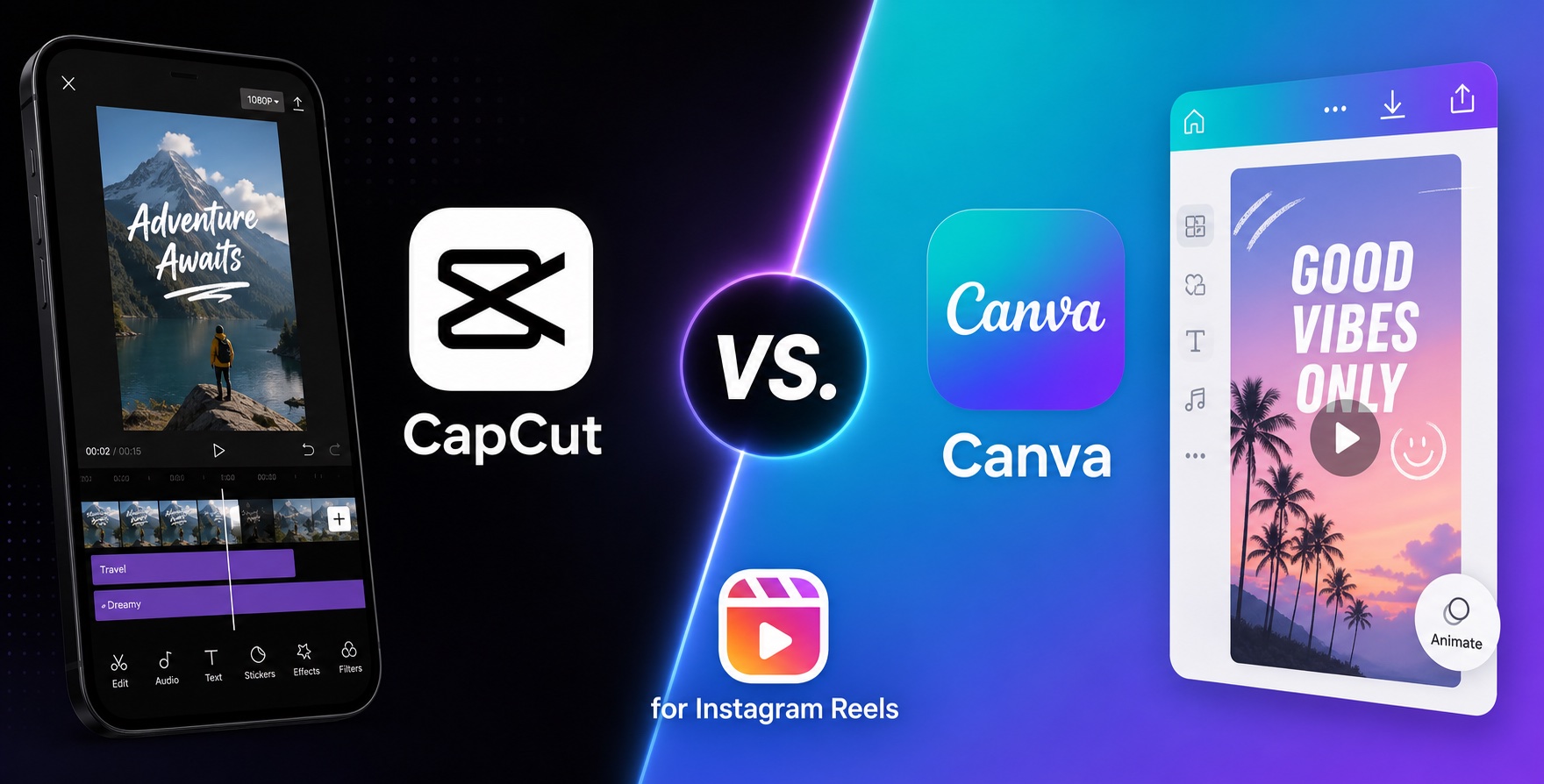
CapCut vs. Canva for Instagram: How to Make Trending Reels?

So, you want to make reels that look good and get pushed by the algorithm. As it turns out, the choice of editing app you use actually makes a lot of difference. There are two main apps that you might be conflicted between. In this guide, we're going to tell you precisely which one works well for what type of content—with results you can measure and verify yourself from Day 1!

Now, before we begin, let's clarify one thing: one tool is a video editor and another one is predominantly a design tool (for making graphics and posters, for example) that just has video capabilities added to it. Super important point to keep in mind as you'll see below.

The #1 Difference: Timeline vs. Design Canvas

CapCut is a proper video editor. It's built around a proper timeline like traditional video editing software like Adobe Premiere Pro. As such, it's got things like clips, layers, keyframes, and perhaps most importantly, tools for precise timing control. Canva, on the other hand, is built differently. The platform has slides or frames that you stitch together in a sequence—more like Microsoft PowerPoint.

This is the reason why CapCut is able to handle things like frame-precise cuts, speed ramping, and audio waveform synching much more naturally. Canva's slide-based model cannot do that. But it does have its own advantage. If you're someone who thinks in scenes rather than footage, Canva feels naturally better and often works faster.

There are often good reasons for blocking someone. Continuing to seek out their content through alternate means can be considered harassment. It also sets up potential privacy violations if you share or act upon information the user expressly doesn't want you accessing. Attempting to view a blocked user's private content raises ethical concerns. Respecting privacy and consent is paramount despite curiosity or good intentions. Still, ethical factors are important when attempting to view blocked content.

  • • Capcut is good for anything that requires tight editing, precise timing, ramping, and musical-beat-level cutting.
  • • Canva is good for swapping text, colors, branding, etc., across many videos in a faster way. It's slide-by-slide that works well when you don't have a lot of continuous footage to work with. account security and constitute stalking behavior.

Both are built for different types of content. You can tell if something was made using Canva or not. A properly edited video? Probably CapCut. A slide-by-slide montage with transitions and slight animations? Canva. If you mainly have a bunch of images, some text, and branding elements, going with CapCut will be a bad idea. But if you have continuous footage that needs to be edited properly with musical beats, choose CapCut.

Knowing just this allows you to settle on the better of the two tools. Neither is perfect for all types of reels. Align your platform with your needs and your reels will be pushed more by the algorithm, simple as that!

Oh, another thing. Canva lacks chroma key (green screen). This is a real limitation if the reel needs any background compositing. CapCut handles this effortlessly.

Editing Firepower

The more complex the editing work, the more CapCut starts to become the better option. But how do you decide? More importantly, how do you ensure the final output is perfect for your intended audience? The best way to figure this out is to know what is complex in terms of reels editing.

Below, we'll split the general workflow into components. The more you need of each, the clearer the choice will become:

  • • Auto-Captions: CapCut is widely considered the stronger, faster, more stylable option (speaker-ID captions, more style presets, quicker sync). Canva has captions too, but they're less flexible for the “bold animated word-by-word” caption look that's currently dominant on Reels.
  • • Beat Sync: Canva added its own auto Beat Sync, which allows snaps to cut to the music. But CapCut's tools go deeper. If you don't need deeper control here, Canva is sufficient. But if you need multi-track mixing, individual clip volume control, noise reduction, etc., then Canva's manual audio control will feel noticeably clunkier and just waste your time.
  • • Effects & Transitions: CapCut has a much larger, faster-refreshing library of trend-specific effects/filters with weekly updates. This is why it's better if you want to capitalize on recent trends.
  • • Keyframe Animation: Canva's keyframe animation is rudimentary. CapCut has more granular control.
  • • AI Extras: Both have AI tools like background removal, auto reframe, short AI video generation (capped to around 4-8 seconds), voice cloning, voiceover, etc. Functionally, both are similar, but CapCut's tools are geared toward editing existing footage. Canva's AI tools are for generating supplementary clips or B-roll for design-first videos.
  • • Templates: Canva's library is bigger in raw numbers and stronger for branded, reusable formats (same intro/outro across 50 videos). CapCut's templates are more trend-native and TikTok/Reels-culture-specific (closer to what's actually circulating right now).

So, if your reel is footage-heavy with a talking head, vlog-style commentary, detailed voiceover, etc., then you should choose CapCut. Its toolset is prepared for a lot of heavy lifting. But if your reel is graphic-heavy, needs a lot of text, or is more animated, such as with announcements, listicles, quote cards, product highlights, etc., then Canva will save you a lot of time.

When you have continuous footage that needs to be edited, trimmed, synced, etc., properly with granular control, you need a proper video editor like CapCut. But if you are making something that has pretty much ready assets such as images, graphics, slight animations, text appear/disappear, and visual elements like branding, you can work much faster in Canva without losing presentation quality.

What Actually Affects Whether a Reel Trends

Let's take a look at Instagram's 2026 signals.

  • • Instagram's 2026 “Originality Score” actively suppresses Reels carrying a visible TikTok or CapCut watermark. It's the one place editor choice can directly tank reach.
  • • CapCut's free tier is watermark-free for normal edits, but certain AI features/Pro-only templates and effects still stamp a watermark if used without a paid plan. Free users need to double-check exports before uploading.
  • • Canva's free plan exports no-watermark videos at 1080p. This is a point in Canva's favor.
  • • Neither tool's brand/logo is the issue by itself. It's specifically leftover platform watermarks (TikTok logo, editor logos) that get penalized. Native, unbranded exports from either tool are treated equally by the algorithm.
  • • 1080x1920 (9:16), high-resolution videos with clean audio should be your default.
  • • Reels up to 3 minutes are now eligible for non-follower distribution, but completion rate still rules. The editing feature that arguably matters most for trending isn't a fancy effect, it's whichever app gets a strong hook into the first 3 seconds fastest.
  • • Good editing certainly makes content more watchable but it doesn't substitute for a strong hook. The algorithm still values Instagram's core signals (watch time, DM shares, and saves).


Related Posts

Become a Faceless Instagram Creator In 2026

Showing your face in order to be successful on social media is not the only option these days. When you can present your ideas powerfully, you can start earning money as a faceless creator on Instagram in 2026.

How to Use Instagram Safely on Public WiFi and VPN

Using Instagram on a public WiFi comes with its own set of nuances. Can Instagram run smoothly over a VPN to view content from other countries? Does Instagram/Meta detect VPN use and penalize it?

Can You See Instagram Stories When They Blocked You?

While seeing blocked content often stems from innocent curiosity, it's essential to respect others' privacy. We'll explore ways to view someone's stories that are public but you are blocked by them.

  • Blog
  • Privacy Policy
  • Terms And Condition
  • Contact Us

The site is a fan page. Insnoop is not connected with Instagram. All content belongs to the content authors. Download is available for informational purposes only.